
This is documentation for the next version of Grafana documentation. For the latest stable release, go to the latest version.

Text
Note
The new text panel is currently in public preview. Grafana Labs offers limited support, and breaking changes might occur prior to the feature being made generally available.
To use this feature, enable the
grafana.newTextPanelandtext.newFeaturesfeature toggles in your Grafana configuration file or contact Support.For information about the generally available experience, refer to the latest OSS documentation.
Text visualizations let you include text, HTML, code blocks, or Mermaid diagrams in your dashboards. You can use them to add contextual information and descriptions or to embed complex HTML. With text visualizations, you can build things like lightweight data-driven tables, cards, lists, and status summaries.
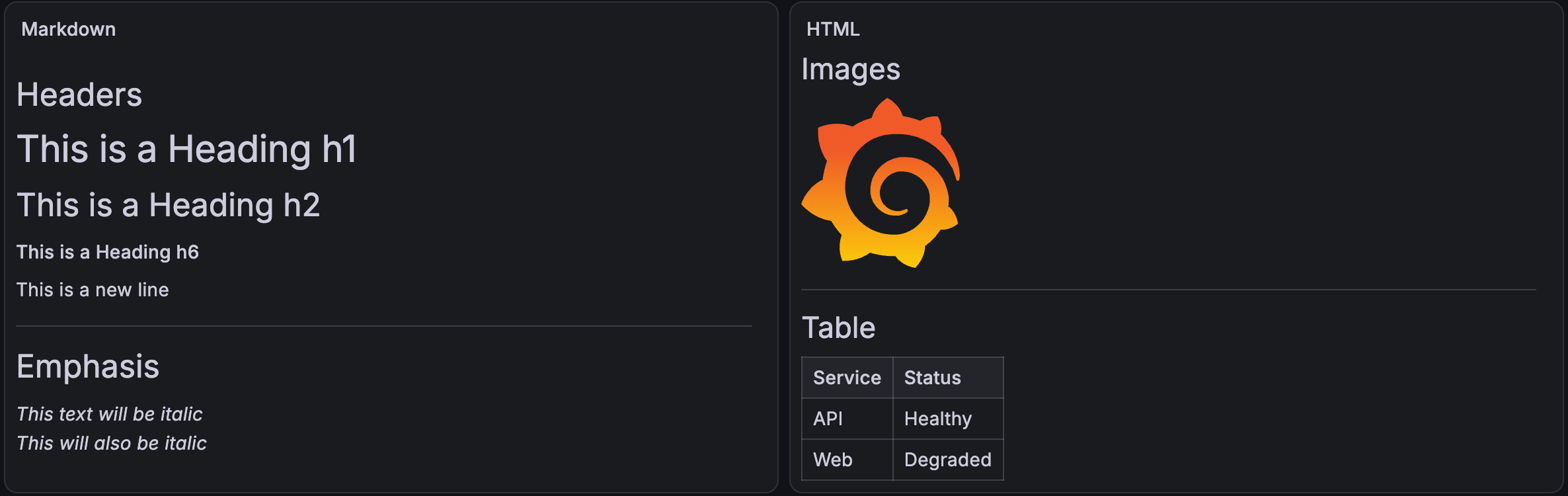
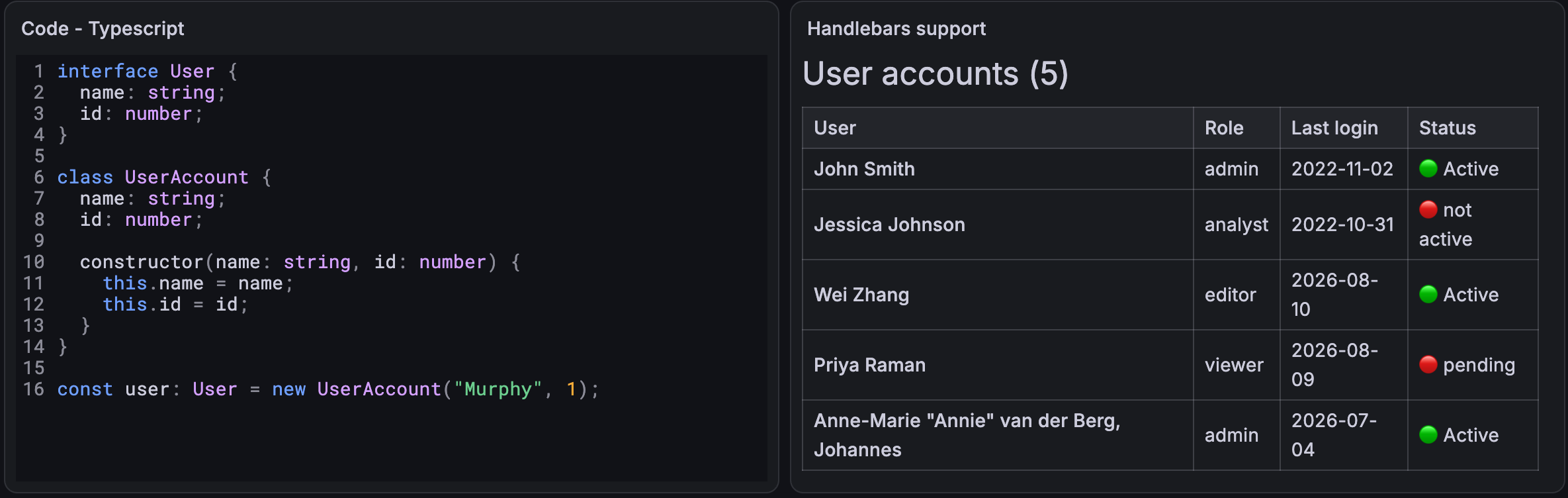
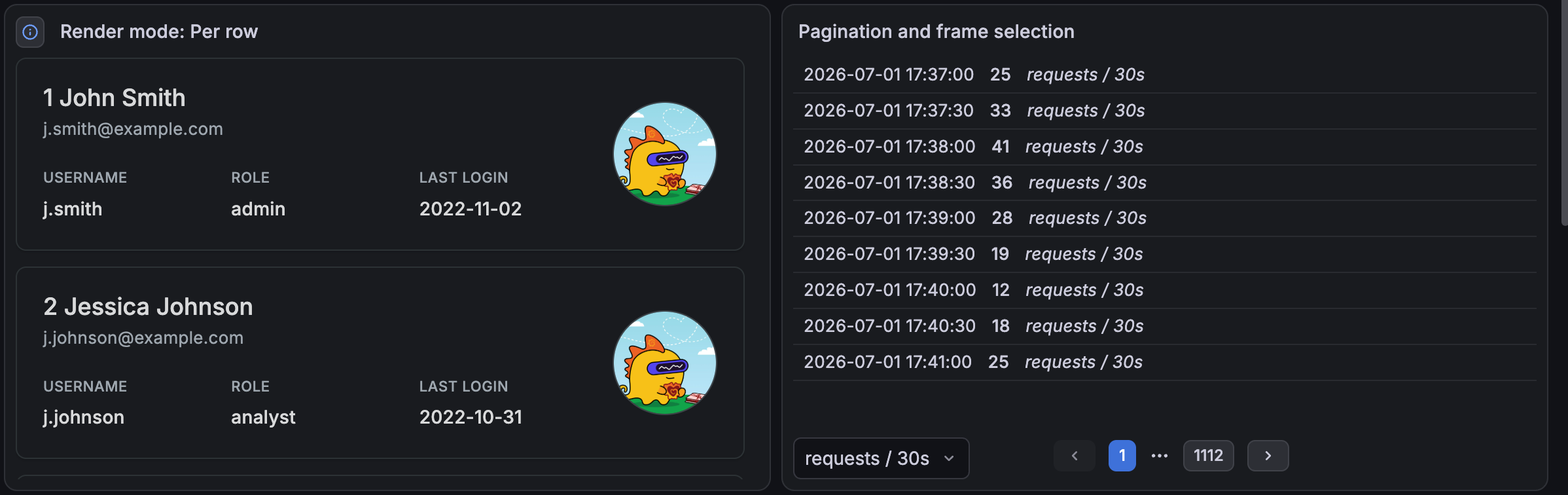
The following images show different uses of the text visualization.
Here, text visualizations use Markdown and HTML modes:
In this example, one text visualization is in TypeScript mode and the other is using Handlebars templating:
Finally, this image shows one text visualization using per row render mode and another using pagination:

With Grafana Play, you can explore and see how it works, learning from practical examples to accelerate your development. This feature can be seen on Text Panel.
Use a text visualization when you need to:
- Add important links or useful annotations.
- Provide instructions or guidance on how to interpret different panels, configure settings, or take specific actions based on the displayed data.
- Announce any scheduled maintenance or downtime that might impact your dashboards.
Text visualization editor
The editor is where you enter and preview the content of a text visualization. It’s where you set text modes, like Markdown, HTML, or a specific coding language. Additionally, it provides formatting options and syntax highlighting, as well as variable and diagram support.
To learn more, click the following links:
Views
The editor provides three views:
- Preview: See only the preview block.
- Split: See the authoring and preview blocks at the same time.
- Write: See only the authoring block.
Toolbar
The toolbar provides formatting options for common Markdown and HTML operations, like bold or italic text and lists. You can also insert:
- Tables
- Mermaid diagrams
- Dashboard variables
Dashboard variables autocomplete as you enter them, and they’re interpolated in the content.
The options displayed in the formatting toolbar depend on whether you select Markdown or HTML.
Modes
The visualization mode determines how embedded content appears. Choose from:
- Markdown: Formats the content as Markdown.
- HTML: Renders the content as sanitized HTML. If you require more direct control over the output, you can set the
disable_sanitize_htmlflag which enables you to directly enter HTML. - Code: Renders content inside a read-only code editor. Variables in the content are expanded for display. The code options are: Go, HTML, JSON, Markdown, Plain text, SQL, TypeScript, XML, YAML.
The editor provides syntax highlighting in the authoring block.
Note
When a text visualization has query data, an iframe only loads after you allow its source. For more information, refer to the Security and external documentation.
To embed Grafana pages in an iframe, also set
allow_embeddingtotruein your Grafana configuration file or environment variables. This setting controls whether browsers can show Grafana in a frame. Other websites control this with their own settings.
Render query results as text with Handlebars templates
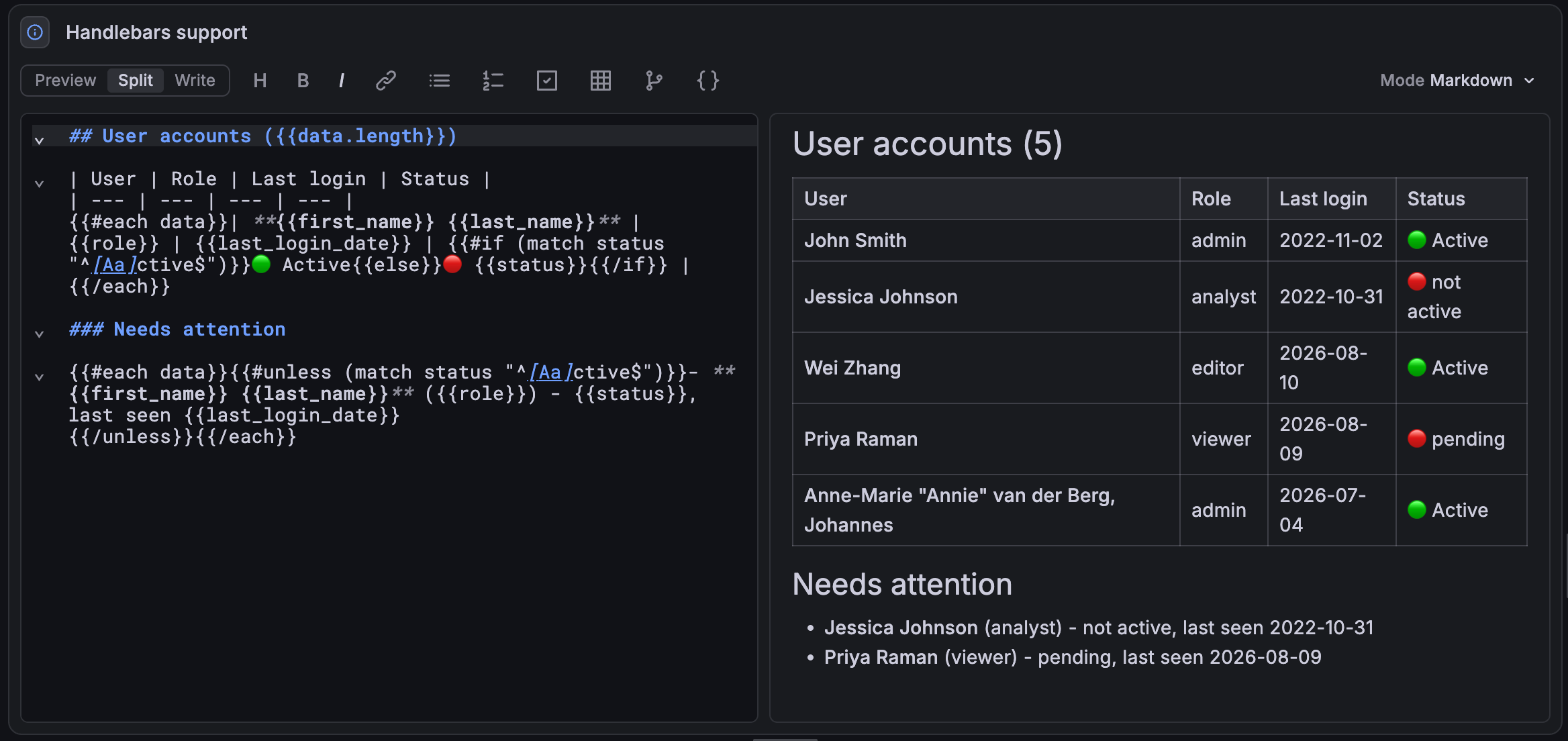
Use ${__value}, ${__field}, ${__series}, and ${__data} macros to reference query results in the visualization content, and Handlebars templating for more control.
Choose what data to display, repeat content for each row with {{#each}}, and add if/then logic with {{#if}} helpers.
Style content with theme colors
Use the
$__theme variable in inline styles to match the current Grafana theme.
The content updates when a user switches between light and dark themes.
For example, the following HTML shows a card with the theme’s background, border, and secondary text colors:
<div
  style="padding: 12px; background: ${__theme.colors.background.secondary}; border: 1px solid ${__theme.colors.border.weak}; border-radius: ${__theme.shape.radius.default}"
>
  <strong>checkout</strong>
  <div style="color: ${__theme.colors.text.secondary}; font-size: ${__theme.typography.size.sm}">182 ms</div>
</div>
The variable works in Markdown and HTML modes, and in the output of Handlebars templates.
For example, use {{#if}} to choose a success or error color for each row.
Security and external content
When a text visualization has query data, Grafana renders its content in an isolated frame. This protects the dashboard and your Grafana session from the content of the panel.
What the frame blocks
Inside the frame, the content can’t:
- Run scripts, including inline scripts and event handlers.
- Read your Grafana session, cookies, or the rest of the dashboard.
- Call the Grafana API or send requests to other services.
- Submit forms or embed plugins with
<object>or<embed>. - Load images, stylesheets, fonts, audio, video, or iframes from a URL, unless you allow its source.
Grafana always sanitizes HTML in the frame, even when
disable_sanitize_html is enabled.
Inline styles, data: images, and Mermaid diagrams still work.
By default, links open in a new tab.
Review blocked resources
In most cases, when a panel tries to load content from a URL, Grafana blocks it and shows a banner at the top of the dashboard and in the panel editor. To load the content, complete the following steps:
- In the banner, click Review.
- Review each source and the full list of URLs that it requests.
- Select the sources that you trust.
- Click Allow or Always allow.
You can’t allow a source that requests too many URLs to list, because you can’t review all of them.
Allow and Always allow
The two options differ in where the approval applies and how long it lasts:
- Allow: Loads content from the source in the text visualizations listed in the review. The approval only applies to the current dashboard and ends when you close the browser tab.
- Always allow: Loads content from the source in any text visualization. The approval applies to any dashboard and lasts for 30 days.
Approvals apply only to you, in the current organization and browser. They’re stored in your browser, not in Grafana, and they aren’t shared with other users.
What an approval allows
When you allow a source, you allow its whole website, for example https://example.com, not only the URLs listed in the review.
The panel can then load images, stylesheets, fonts, audio, video, and iframes from that website.
Before you allow a source, consider the following risks:
- Data in URLs: Panel content can put dashboard variables and query results into URLs. The website receives that data with each request.
- Viewer information: The website receives your IP address, your browser details, and the time of each request. The requests don’t include the address of your Grafana instance or the dashboard, unless the panel content puts it in a URL.
- Content changes: The website can change what it serves after you allow it. An approval doesn’t lock the content that you reviewed.
- Embedded pages: An iframe from the website can show any content in the panel, and it can load content from other websites. However, it can’t run scripts, submit forms, or read your Grafana session or the dashboard.
Only allow websites that you trust with the data on the dashboard.
Configuration options
The following section describes the configuration options available in the panel editor pane for this visualization. These options are, as much as possible, ordered as they appear in Grafana.
Panel options
In the Panel options section of the panel editor pane, set options like the panel title, description, and show/hide rules. To learn more, refer to Configure panel options.
Data options
Use the following options to control how data is rendered in the text visualization.
Render mode
Select a render mode to control how your template is applied:
- Once: Render the whole result.
- Per row: Each row in the data gets its own repeated block of content.
You can also select which data frame to display.
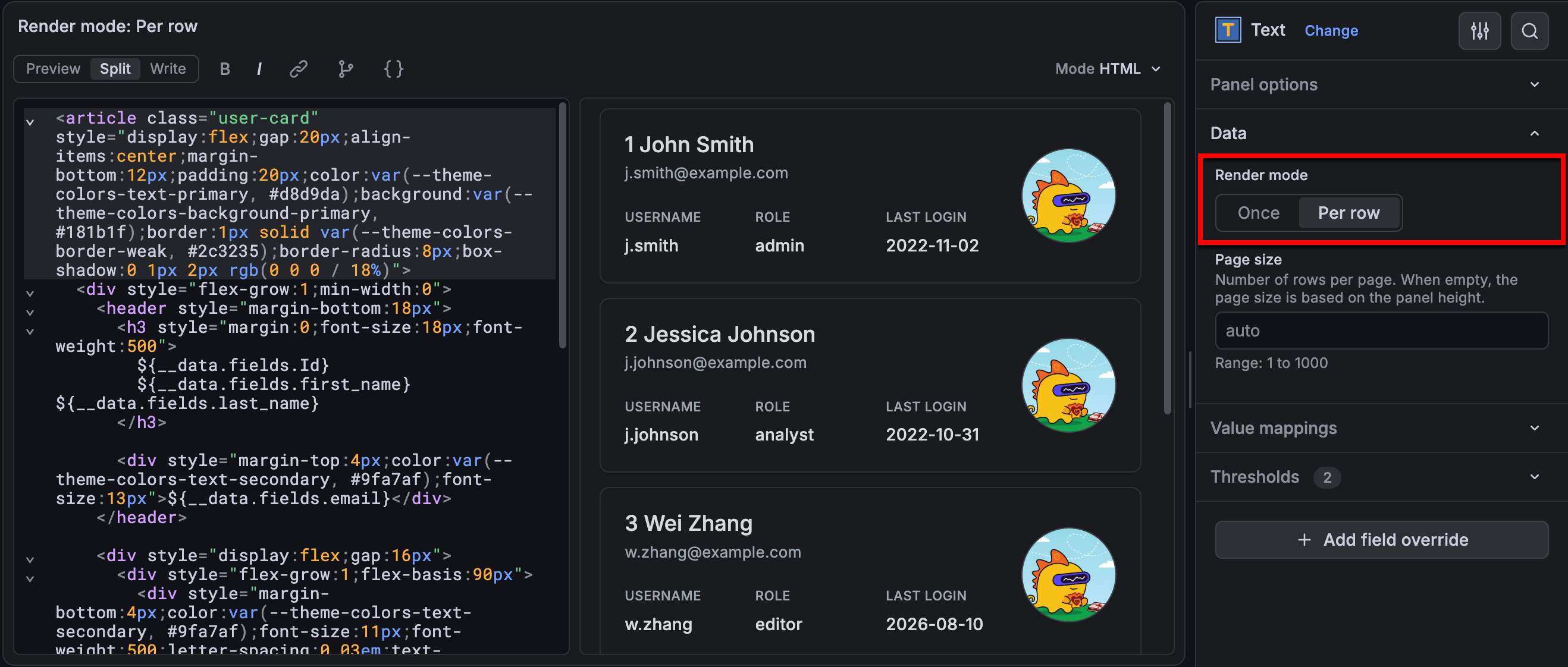
Page size
When a query returns many rows, pagination lets you move through the full result instead of showing only a limited number of rows. Grafana automatically adjusts the number of rows on each page to fit the panel or you can set a range from 1-1000 rows.
This option only displays when you set Render mode to Per row and when there are 100 rows or more.
Value mappings
Value mapping is a technique you can use to change how data appears in a visualization.
For each value mapping, set the following options:
- Condition - Choose what’s mapped to the display text and (optionally) color:
- Value - Specific values
- Range - Numerical ranges
- Regex - Regular expressions
- Special - Special values like
Null,NaN(not a number), or boolean values liketrueandfalse
- Display text
- Color (Optional)
- Icon (Canvas only)
To learn more, refer to Configure value mappings.
Thresholds
A threshold is a value or limit you set for a metric that’s reflected visually when it’s met or exceeded. Thresholds are one way you can conditionally style and color your visualizations based on query results.
For each threshold, set the following options:
To learn more, refer to Configure thresholds.
Field overrides
Overrides allow you to customize visualization settings for specific fields or series. When you add an override rule, it targets a particular set of fields and lets you define multiple options for how that field is displayed.
Choose from the following override options:
To learn more, refer to Configure field overrides.
Was this page helpful?
Related resources from Grafana Labs



